
What is ATT, and how does it affect your iOS campaign data?

The short answer
App Tracking Transparency (ATT) is Apple’s permission system that requires an app to ask users before tracking them across other companies’ apps and websites. When a user declines, the app cannot access the advertising identifier (IDFA). Most iOS campaign data then becomes aggregated and delayed instead of user-level. You can show your own context screen (a pre-prompt) before the system prompt to explain why.
Talk to our team
Contents
ATT is the system prompt that appears in apps starting with iOS 14.5. It controls whether an app can track a user across other companies’ properties. For related measurement topics, see our guide on why your MMP may not show iOS attribution data. For full measurement work, see our MMP data audit and setup services.
What is ATT?
App Tracking Transparency is an Apple framework that shows a system prompt asking the user whether the app can track their activity across other companies’ apps and websites. The user can choose “Allow” or “Ask App Not to Track.”
If the user allows tracking, the app can access the Identifier for Advertisers (IDFA). If the user declines, the IDFA returns as all zeros and the app may not track the user as defined by Apple.
Apple defines tracking as linking data collected from your app with data from other companies’ apps, websites, or offline properties for targeted advertising or advertising measurement, or sharing data with data brokers.
What this means for your decision: ATT is a user permission gate. Most users decline it, which removes the main identifier that previously powered user-level attribution.
What does the ATT prompt look like?
This is the standard system prompt. The user sees the app name, a short purpose string you provide (NSUserTrackingUsageDescription), and two fixed buttons.
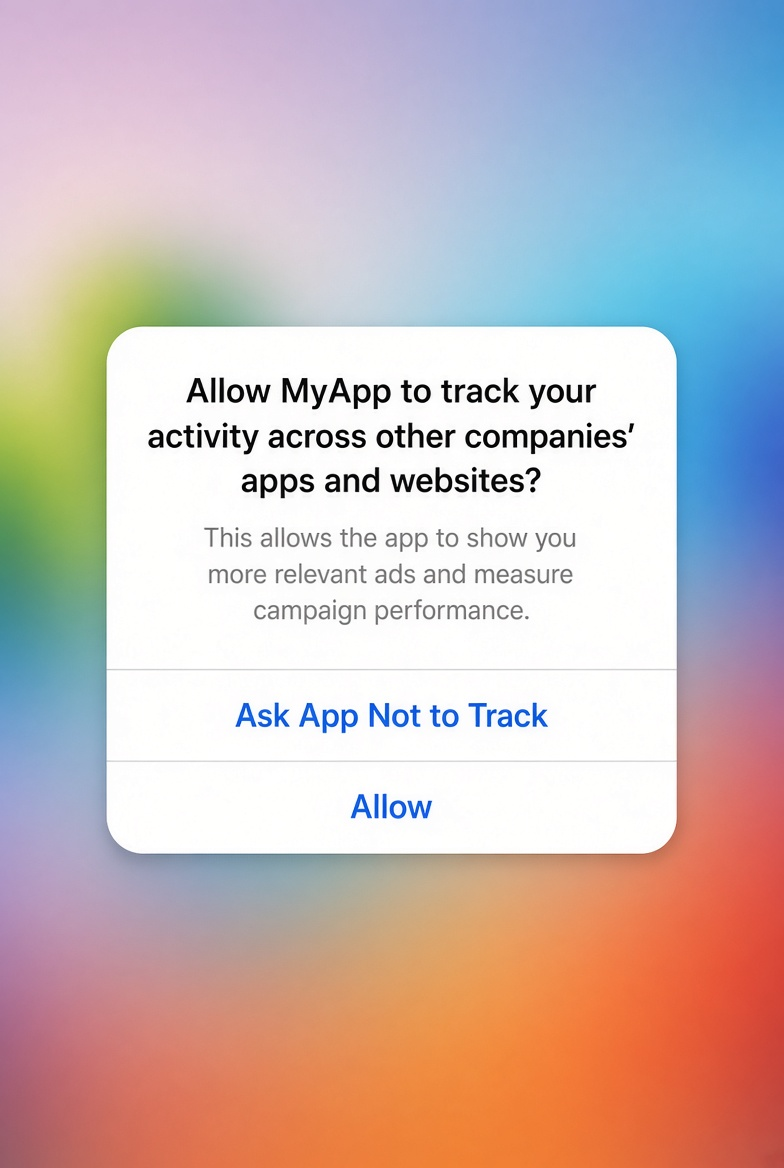
You cannot change the button labels or the overall look of this dialog. You control only the short purpose string under the main question.
What this means for your decision: The system prompt is fixed. The main messaging opportunity is in the purpose string and in any screen you show before it.
What is a pre-prompt?
A pre-prompt (also called a context screen or soft prompt) is a custom screen your app shows before calling the ATT API. It is not part of Apple’s system. You control the design, the copy, and the single button.
Apple’s User Privacy and Data Use page states that you can explain why you would like permission to track before showing the system prompt, as long as you are transparent and do not manipulate or force consent.
Here is an example of a simple pre-prompt:
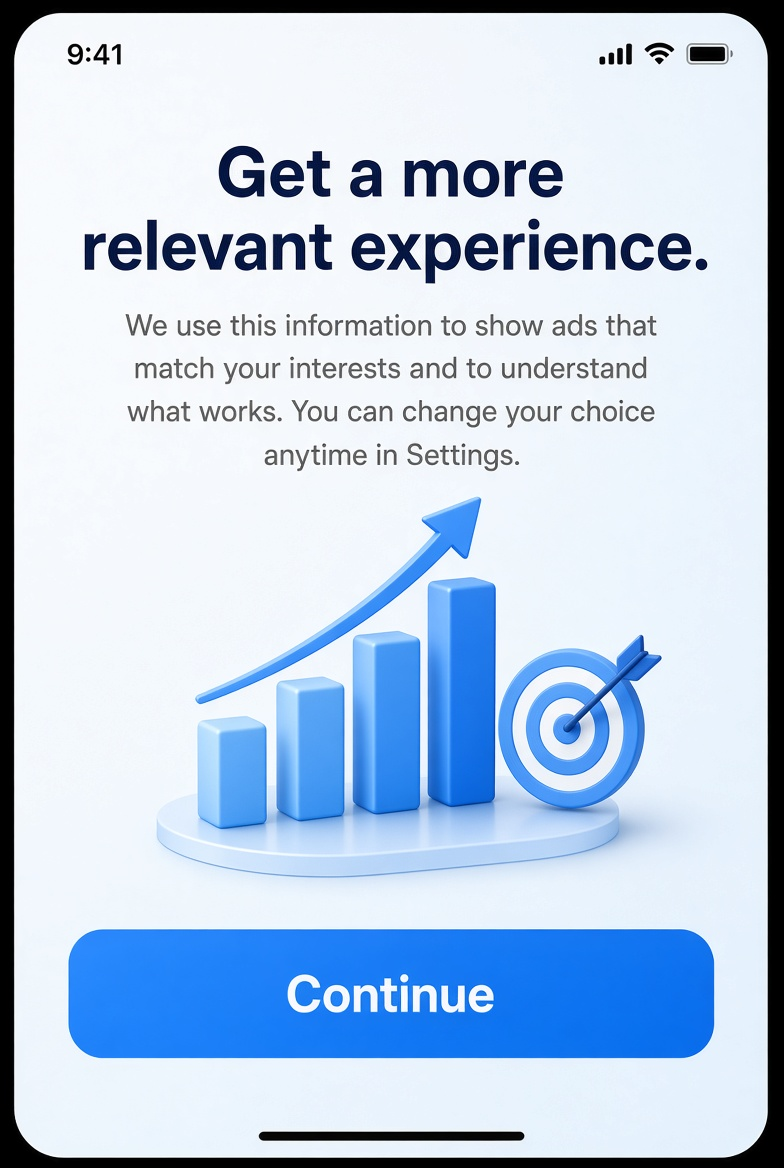
After the user taps Continue, your app calls the ATT API and the official system prompt appears.
Allowed:
- One clear explanation of what tracking enables in your app.
- A single Continue / Next / Got it button.
- Honest language about the benefit.
Not allowed:
- Looking like the system dialog or using the word “Allow.”
- Offering rewards or gating features for tapping Allow.
- Multiple buttons that let the user skip the system prompt.
What this means for your decision: The pre-prompt is your chance to give context in your own words before the fixed system dialog.
Talk to our teamHow does ATT affect iOS campaign data?
For users who allow tracking, your MMP can still match the click and install at the user level using the IDFA.
For users who decline (the majority), the IDFA is unavailable. Measurement then relies on Apple’s aggregated frameworks (SKAdNetwork and AdAttributionKit). These send delayed, campaign-level postbacks without user identifiers.
The practical result is that most iOS campaign data becomes:
- Aggregated rather than user-level.
- Delayed (often 24 hours or more).
- Limited in the number of events and detail that can be reported.
- Dependent on correct SKAdNetwork or AdAttributionKit configuration.
What this means for your decision: Expect incomplete or delayed iOS numbers in your MMP for users who decline ATT. Plan reporting and optimization around this limitation.
When is a pre-prompt useful?
In our experience, a pre-prompt is most useful when the official purpose string alone is too short to explain the benefit, or when you want the request to feel like part of onboarding rather than a sudden system alert.
It does not replace good purpose-string copy. Both matter. Test the timing and the message.
What this means for your decision: A short, honest pre-prompt can improve the chance of consent. It does not fix broader measurement gaps.
When is more tracking not the answer?
Trying to force more user-level data is not the answer when the limitation comes from Apple’s rules. Workarounds that attempt to reconstruct user-level tracking without permission violate Apple’s policies.
If the main problem is incomplete iOS data after users have already responded to the prompt, the practical path is correct SKAdNetwork or AdAttributionKit setup. See our guide on why your MMP may not show iOS attribution data.
What this means for your decision: Use a pre-prompt to improve consent rates. Accept the aggregated nature of most iOS data for users who decline.
FAQ
Pre-ATT (before iOS 14.5) the advertising identifier was available by default. With ATT, the app must ask permission. Most users decline, removing user-level matching for those users.
Yes. Apple allows a transparent context screen (pre-prompt) before the system prompt, as long as it does not pressure, reward, or trick the user.
No. Apple’s SKAdNetwork and AdAttributionKit still provide aggregated, delayed campaign-level data without requiring ATT permission.
Only for users who allow tracking via the ATT prompt. For users who decline, measurement is aggregated.
Common reasons include users declining ATT, missing or incorrect SKAdNetwork / AdAttributionKit configuration, and the inherent delays and aggregation of Apple’s frameworks.
What to do next
Not sure how ATT is affecting your iOS campaign data, or whether your pre-prompt is set up correctly? Talk to our team. We will look at your setup and tell you where we would start.
Talk to our teamRelated Articles
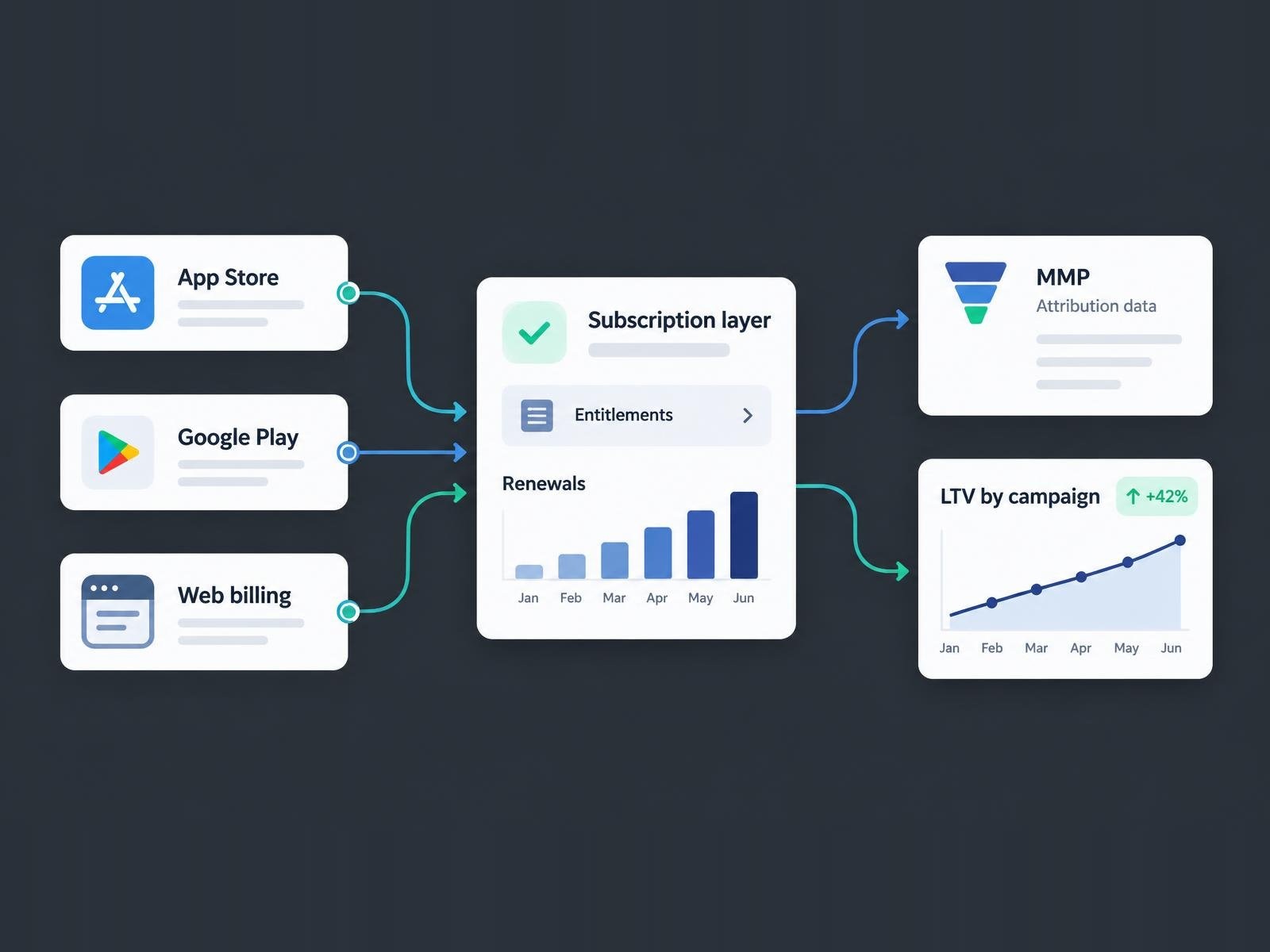
What is RevenueCat and Why Is It a Powerful Tool for Apps?
November 23, 2026
What RevenueCat does for apps, why the cross-platform subscription layer matters, how pricing works, and when it is the right choice.
Read More
Why is my MMP not showing iOS attribution data?
November 13, 2026
Why SKAN, AdAttributionKit and ATT leave gaps in your MMP's iOS data, what commonly breaks, and what to check before raising iOS spend.
Read More
How to Choose the Right Mobile Measurement Partner (MMP) for Your App
September 9, 2026
AppsFlyer, Adjust, Singular, Branch, Kochava and Tenjin compared: how MMPs work, what the free tiers cover and what they cost at scale.
Read More